


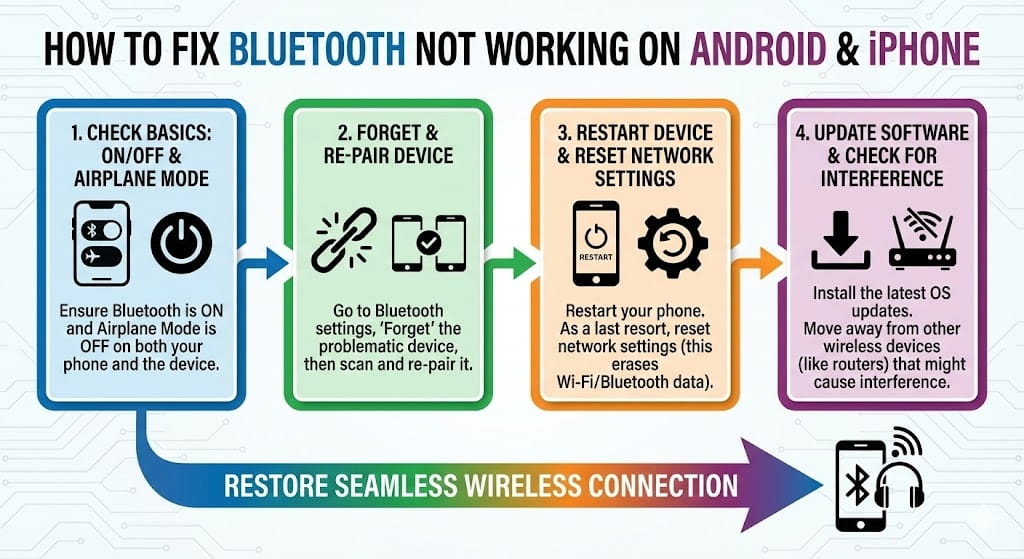
Bluetooth not working on Android and iPhone, Bluetooth connection problems, Bluetooth not pairing, Bluetooth keeps disconnecting, how to fix Bluetooth issues on smartphone, Bluetooth not finding devices, Bluetooth troubleshooting guide — these are some of the most common mobile connectivity problems users experience. Bluetooth technology allows smartphones to connect wirelessly to headphones, speakers, smartwatches, car systems, keyboards, and many other devices. When Bluetooth stops working, it can disrupt communication, entertainment, and productivity.
Bluetooth issues can occur due to software glitches, outdated operating systems, pairing conflicts, interference, or hardware damage. Fortunately, most Bluetooth problems can be fixed using simple troubleshooting steps without professional repair. This comprehensive step-by-step guide explains why Bluetooth stops working on Android and iPhone, how to diagnose the problem, and proven methods to restore Bluetooth connectivity quickly.
Understanding How Bluetooth Works
Bluetooth is a short-range wireless technology that connects devices using radio frequency signals. It works by pairing two devices and creating a secure connection for data transfer and communication.
Bluetooth Connection Process
- Device scanning and discovery
- Device pairing and authentication
- Connection establishment
- Continuous data communication
If any of these stages fail, Bluetooth may not work properly.
Common Signs Bluetooth Is Not Working
Recognizing symptoms helps identify the root cause faster.
Bluetooth Problem Symptoms
- Bluetooth cannot find devices
- Devices fail to pair
- Bluetooth connects but disconnects frequently
- Audio cuts out during playback
- Bluetooth option turns off automatically
- Connected devices show but do not function
Main Causes of Bluetooth Not Working
Below is a summary of common Bluetooth issues:
| Cause | Description | Difficulty Level |
|---|---|---|
| Software Glitches | Temporary system errors | Easy |
| Outdated Operating System | Compatibility issues | Easy |
| Device Pairing Conflicts | Saved pairing data corruption | Easy |
| Interference | Other wireless signals disrupting connection | Medium |
| Battery Problems | Low battery affecting signal strength | Easy |
| Hardware Damage | Bluetooth chip failure | Hard |
Step-by-Step Guide to Fix Bluetooth Not Working on Android and iPhone
Step 1: Restart Your Smartphone
Restarting fixes temporary system and connectivity glitches.
Why Restarting Helps
- Clears temporary memory errors
- Resets Bluetooth services
- Refreshes wireless communication modules
- Stops background connectivity conflicts
How to Restart
- Power off phone completely
- Wait 30 seconds
- Turn phone back on
- Re-enable Bluetooth
Step 2: Toggle Bluetooth Off and On
Turning Bluetooth off and on refreshes the connection.
Steps
- Open Bluetooth settings
- Turn Bluetooth off
- Wait 10 seconds
- Turn Bluetooth back on
- Try reconnecting devices
Step 3: Check Bluetooth Device Compatibility
Some Bluetooth devices may not support certain Bluetooth versions or profiles.
Bluetooth Version Compatibility
| Bluetooth Version | Features |
|---|---|
| Bluetooth 4.0 | Basic wireless connectivity |
| Bluetooth 5.0 | Improved speed and range |
| Bluetooth 5.2+ | Enhanced audio quality |
Ensure both devices support compatible Bluetooth standards.
Step 4: Forget and Re-Pair Bluetooth Devices
Saved pairing data sometimes becomes corrupted.
How to Forget Bluetooth Device
Android
- Open Settings
- Tap Bluetooth
- Select paired device
- Tap Forget or Unpair
iPhone
- Open Settings
- Tap Bluetooth
- Tap information icon
- Select Forget This Device
Reconnect device afterward.
Step 5: Check Device Battery Levels
Low battery affects Bluetooth signal strength.
Devices to Check
- Wireless headphones
- Smartwatches
- Bluetooth speakers
- Car infotainment systems
Fully charge both smartphone and Bluetooth accessory.
Step 6: Move Devices Closer Together
Bluetooth range typically operates within 10 meters (33 feet).
Interference Sources
- WiFi routers
- Microwave ovens
- Other Bluetooth devices
- Thick walls or metal surfaces
Keep devices close and remove interference sources.
Step 7: Clear Bluetooth Cache (Android Only)
Corrupted Bluetooth cache may cause connectivity problems.
How to Clear Bluetooth Cache
- Open Settings
- Go to Apps → System Apps
- Find Bluetooth
- Tap Storage
- Select Clear Cache
Step 8: Reset Network Settings
Network reset removes corrupted wireless configurations.
How to Reset Network Settings
Android
- Settings → System → Reset Options → Reset WiFi, Mobile & Bluetooth
iPhone
- Settings → General → Transfer or Reset iPhone → Reset Network Settings
⚠️ This removes saved WiFi and Bluetooth connections.
Step 9: Update Smartphone Operating System
Software updates often fix Bluetooth bugs.
Why Updates Improve Bluetooth
- Fix compatibility issues
- Improve wireless stability
- Optimize Bluetooth drivers
- Enhance device pairing reliability
Always install latest OS updates.
Step 10: Update Bluetooth Device Firmware
Some accessories require firmware updates.
Devices That Often Require Updates
- Wireless earbuds
- Smartwatches
- Car audio systems
- Gaming controllers
Check manufacturer apps for firmware updates.
Step 11: Disable Battery Optimization Restrictions
Battery saving modes sometimes disable Bluetooth functions.
Android Battery Optimization Fix
- Settings → Battery → Battery Optimization
- Allow Bluetooth apps unrestricted access
iPhone Low Power Mode Fix
- Disable Low Power Mode temporarily
Step 12: Check App Permissions
Apps using Bluetooth require proper permissions.
Permissions to Enable
- Location access
- Bluetooth access
- Nearby devices permission
Step 13: Remove Interfering Apps
Some third-party apps interfere with Bluetooth connectivity.
Apps Known to Cause Conflicts
- VPN applications
- Device optimization apps
- Battery saver apps
- Security monitoring apps
Uninstall suspicious or recently installed apps.
Step 14: Test Bluetooth in Safe Mode (Android)
Safe mode disables third-party apps.
How to Enter Safe Mode
- Press and hold power button
- Tap Safe Mode option
- Test Bluetooth connection
If Bluetooth works in safe mode, third-party apps cause the issue.
Step 15: Factory Reset Smartphone (Last Resort)
Factory reset removes deep software conflicts.
Before Factory Reset
- Backup all data
- Remove Google or Apple account
- Ensure battery above 50%
Android vs iPhone Bluetooth Troubleshooting Differences
| Feature | Android | iPhone |
|---|---|---|
| Bluetooth Cache Clearing | Available | Not Available |
| Safe Mode Testing | Available | Not Available |
| Network Reset Control | Advanced | Simplified |
| Firmware Customization | Flexible | Limited |
Common Bluetooth Device Connection Problems
Headphones and Earbuds
- Pair only one device at a time
- Reset earbuds if connection fails
Car Bluetooth Systems
- Delete old paired devices
- Restart car infotainment system
Smartwatches
- Ensure companion app is installed
- Keep smartwatch software updated
Advanced Troubleshooting Techniques
Reset Bluetooth Accessory
Most accessories include reset button or reset combination.
Test With Another Device
Testing helps identify whether problem lies with phone or accessory.
Signs of Bluetooth Hardware Failure
You may have hardware damage if:
- Bluetooth cannot be turned on
- Bluetooth toggle disappears
- Phone cannot detect any device
- Bluetooth stops working after water damage
Hardware repair may require professional service.
Estimated Cost of Bluetooth Hardware Repair
| Device Type | Estimated Cost |
|---|---|
| Android Phone Repair | $50 – $150 |
| iPhone Repair | $80 – $200 |
| Bluetooth Accessory Replacement | $30 – $250 |
Preventive Tips to Avoid Bluetooth Problems
Daily Bluetooth Maintenance Checklist
- Keep devices updated
- Avoid pairing too many devices
- Charge accessories regularly
- Remove unused paired devices
- Avoid physical damage or water exposure
Future Bluetooth Technology Improvements
Upcoming Bluetooth innovations include:
- Bluetooth LE Audio
- Improved battery efficiency
- Enhanced multi-device pairing
- Lower latency wireless audio
How User Behavior Affects Bluetooth Performance
Actions That Cause Bluetooth Problems
- Connecting to multiple devices simultaneously
- Ignoring firmware updates
- Using unofficial accessories
- Keeping too many paired devices saved
Conclusion
Experiencing Bluetooth not working on Android and iPhone can interrupt daily smartphone usage. Fortunately, most Bluetooth problems occur due to software glitches, pairing conflicts, outdated firmware, or interference from other wireless devices. By following structured troubleshooting steps such as restarting devices, clearing Bluetooth cache, resetting network settings, and updating software, you can resolve most connectivity issues quickly.
If troubleshooting methods fail, hardware damage or accessory failure may be responsible. Regular software updates, proper device maintenance, and avoiding interference sources significantly improve Bluetooth performance and reliability.
Frequently Asked Questions (FAQ)
Why is my Bluetooth connected but not working?
This usually occurs due to software bugs, incompatible device pairing, or interference from other wireless signals.
How do I fix Bluetooth pairing problems?
Forget paired devices, restart both devices, and reconnect Bluetooth.
Can software updates fix Bluetooth issues?
Yes. Updates often include bug fixes and compatibility improvements.
Why does Bluetooth keep disconnecting?
Disconnections may occur due to low battery, interference, or outdated firmware.
Should I reset network settings to fix Bluetooth?
Yes. Network reset removes corrupted pairing configurations and often restores connectivity.
Can water damage affect Bluetooth?
Yes. Water exposure can damage Bluetooth hardware components.