


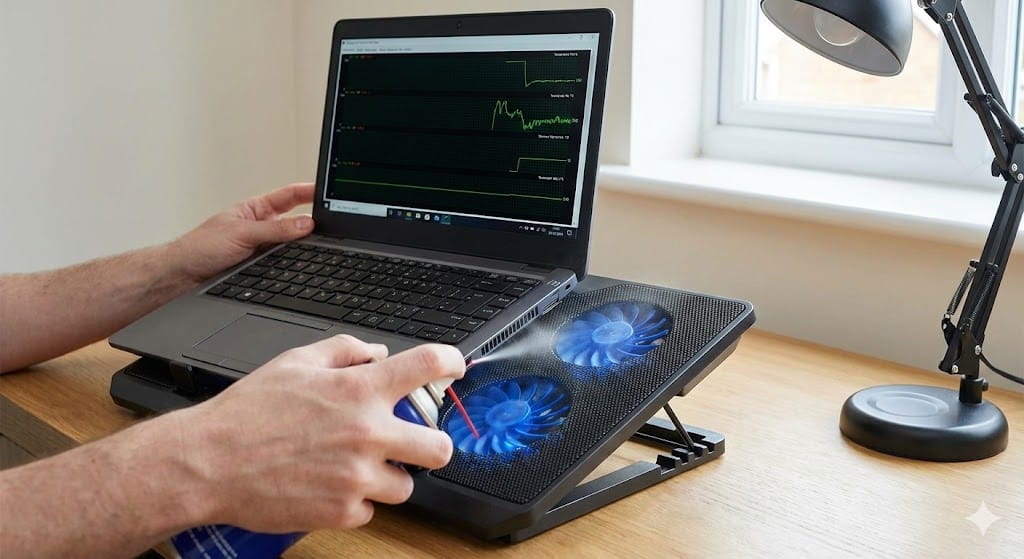
Overheating laptop fix, laptop overheating solution, how to cool down laptop, laptop overheating without opening, laptop gets hot quickly, fix laptop overheating issue, prevent laptop overheating — these are some of the most searched laptop-related problems worldwide. Laptop overheating not only reduces performance but also shortens hardware lifespan and can lead to unexpected shutdowns, system crashes, and permanent component damage.
Many users assume that fixing overheating requires opening the laptop, cleaning internal fans, or replacing thermal paste. However, several effective methods can reduce laptop heat without opening the device. These solutions involve optimizing system settings, improving airflow, managing software resources, and using external cooling techniques.
In this detailed step-by-step guide, you will learn why laptops overheat, how to detect overheating symptoms, and proven ways to fix laptop overheating without opening your device. These methods apply to Windows laptops, MacBooks, gaming laptops, and ultrabooks.
Understanding Laptop Overheating
Laptop overheating occurs when internal components such as CPU, GPU, and battery generate more heat than the cooling system can remove. Modern laptops include thermal protection mechanisms, but excessive heat still affects performance and hardware durability.
Normal Laptop Temperature Range
| Component | Normal Temperature | Overheating Temperature |
|---|---|---|
| CPU | 40°C – 75°C | 85°C and above |
| GPU | 40°C – 80°C | 90°C and above |
| Battery | 30°C – 45°C | 50°C and above |
Common Signs of Laptop Overheating
Recognizing overheating early helps prevent damage.
Warning Symptoms
- Laptop becomes very hot during use
- Fan runs loudly or constantly
- Laptop performance slows down
- Sudden shutdown or restart
- Keyboard area feels extremely warm
- Battery drains faster than normal
Main Causes of Laptop Overheating
Below is a summary of common overheating causes:
| Cause | Description | Difficulty to Fix |
|---|---|---|
| Blocked Air Vents | Dust or blocked airflow | Easy |
| High CPU Usage | Heavy software running | Easy |
| Poor Laptop Placement | Using laptop on soft surfaces | Easy |
| Background Applications | Hidden resource-consuming apps | Easy |
| High Performance Settings | Maximum CPU performance mode | Easy |
| High Ambient Temperature | Hot environment usage | Easy |
Step-by-Step Guide to Fix Overheating Laptop Without Opening It
Step 1: Place Laptop on a Hard, Flat Surface
One of the simplest and most effective solutions is improving airflow.
Why Surface Matters
Soft surfaces like beds, pillows, and carpets block ventilation vents located under laptops.
Recommended Surfaces
- Wooden desks
- Laptop stands
- Glass tables
- Metal cooling platforms
Avoid placing laptop on:
- Blankets
- Sofas
- Cushions
- Clothing
Step 2: Clean External Air Vents
Dust buildup restricts airflow and traps heat.
How to Clean Vents Without Opening Laptop
- Turn off laptop
- Disconnect charger
- Use compressed air spray
- Blow air gently into ventilation areas
- Remove visible dust using soft brush
⚠️ Avoid using vacuum cleaners because they generate static electricity.
Step 3: Use Laptop Cooling Pad
Cooling pads improve airflow using external fans.
Benefits of Cooling Pads
- Reduces internal temperature
- Improves airflow circulation
- Enhances laptop performance
- Extends hardware lifespan
Cooling Pad Features to Look For
| Feature | Importance |
|---|---|
| Multiple Fans | Better cooling coverage |
| Adjustable Height | Improves airflow angle |
| Metal Surface | Better heat dissipation |
| USB Powered | Easy setup |
Step 4: Close Unnecessary Background Applications
Running multiple apps increases CPU and GPU workload.
How to Check Background Apps (Windows)
- Press Ctrl + Shift + Esc
- Open Task Manager
- Sort by CPU or Memory usage
- Close unnecessary applications
Common Heat-Causing Applications
- Video editing software
- Gaming applications
- Streaming platforms
- Web browsers with many tabs
Step 5: Reduce Screen Brightness
Display brightness significantly impacts heat generation.
Benefits of Lower Brightness
- Reduces GPU load
- Improves battery life
- Lowers overall system temperature
Enable automatic brightness adjustment for best results.
Step 6: Adjust Power Settings
High performance mode increases CPU power usage and heat output.
How to Change Power Settings (Windows)
- Open Control Panel
- Select Power Options
- Choose Balanced or Power Saver mode
Power Mode Comparison
| Mode | Performance | Heat Generation |
|---|---|---|
| High Performance | Maximum | High |
| Balanced | Moderate | Moderate |
| Power Saver | Reduced | Low |
Step 7: Limit CPU Usage
Reducing CPU maximum performance can significantly reduce heat.
How to Limit CPU Performance
- Open Power Options
- Select Advanced Power Settings
- Locate Processor Power Management
- Set Maximum Processor State to 85-90%
This reduces temperature with minimal performance loss.
Step 8: Update Operating System and Drivers
Outdated software may cause inefficient hardware operation.
Why Updates Help Cooling
- Improve resource management
- Fix performance bugs
- Optimize hardware communication
- Improve fan control algorithms
Always install latest system and driver updates.
Step 9: Disable Startup Programs
Too many startup apps increase system load immediately after boot.
How to Disable Startup Programs
- Open Task Manager
- Select Startup Apps
- Disable unnecessary programs
Step 10: Avoid Direct Sunlight and Hot Environments
Environmental temperature affects laptop cooling ability.
Ideal Usage Environment
- Room temperature between 18°C – 27°C
- Proper airflow around laptop
- Avoid placing laptop near heaters
Step 11: Monitor Laptop Temperature
Tracking temperature helps identify overheating triggers.
Recommended Monitoring Tools
- HWMonitor
- Core Temp
- MSI Afterburner
- Mac Activity Monitor (MacBooks)
Monitoring helps detect abnormal temperature spikes.
Step 12: Use External Keyboard and Mouse
Using external accessories reduces heat buildup around keyboard area and improves airflow.
Step 13: Disable Heavy Visual Effects
Animations and transparency increase GPU load.
How to Disable Visual Effects (Windows)
- Search “Performance Options”
- Select Adjust for Best Performance
- Apply changes
Step 14: Pause Heavy Tasks During Charging
Charging generates additional heat.
Avoid:
- Gaming while charging
- Video rendering during charging
- Running stress-testing software
Step 15: Use Laptop Stand for Better Airflow
Laptop stands elevate device, improving cooling efficiency.
Advantages of Laptop Stands
- Improves ventilation
- Enhances ergonomic posture
- Reduces keyboard heat buildup
Software vs Hardware Overheating Causes
| Type | Cause |
|---|---|
| Software | Background apps, system bugs |
| Hardware | Dust buildup, fan failure, thermal paste degradation |
This guide focuses on software and external cooling solutions.
Gaming Laptop Overheating Solutions
Gaming laptops generate higher heat levels.
Gaming Cooling Tips
- Lower graphics settings
- Enable FPS limits
- Use cooling pad
- Close background software
- Update GPU drivers
Common Mistakes That Increase Laptop Heat
Avoid these errors:
- Blocking ventilation vents
- Running too many browser tabs
- Using laptop while charging constantly
- Ignoring software updates
- Using laptop in hot environments
Preventive Maintenance Tips
Monthly Laptop Cooling Checklist
- Clean ventilation areas
- Update system software
- Check CPU usage regularly
- Monitor temperature levels
- Use cooling accessories
When Should You Seek Professional Repair?
You should consider technician assistance if:
- Laptop overheats even when idle
- Cooling fan makes grinding noise
- Laptop shuts down frequently
- Device temperature exceeds 95°C
- Laptop surface becomes dangerously hot
Estimated Cost of Professional Laptop Cooling Repair
| Repair Type | Estimated Cost |
|---|---|
| Fan Replacement | $50 – $150 |
| Internal Cleaning | $40 – $120 |
| Thermal Paste Replacement | $60 – $180 |
How Laptop Design Affects Cooling Efficiency
Modern laptops prioritize slim design, which sometimes reduces airflow efficiency. Gaming laptops typically include advanced cooling systems with multiple fans and heat pipes.
Future Laptop Cooling Technologies
Upcoming innovations include:
- Vapor chamber cooling
- Liquid metal thermal solutions
- AI-based fan speed control
- Graphene cooling materials
How User Behavior Affects Laptop Temperature
Heavy usage patterns significantly increase heat generation.
Activities That Generate High Heat
- Gaming
- Video editing
- 3D rendering
- Streaming high-resolution content
- Running virtual machines
Conclusion
Experiencing an overheating laptop can affect performance, productivity, and hardware longevity. Fortunately, many overheating problems can be resolved without opening the laptop. Improving airflow, optimizing software usage, adjusting power settings, and using external cooling accessories significantly reduce heat levels.
Regular monitoring, proper laptop placement, and routine system maintenance remain essential for preventing overheating problems. However, if external cooling methods fail, professional internal cleaning or hardware repair may become necessary.
Frequently Asked Questions (FAQ)
Can I fix laptop overheating without opening it?
Yes. Cleaning vents, using cooling pads, adjusting power settings, and reducing system load can significantly reduce overheating.
Is laptop overheating dangerous?
Yes. Excessive heat can damage internal components and shorten laptop lifespan.
Do cooling pads really work?
Yes. Cooling pads improve airflow and reduce laptop temperature effectively.
Why does my laptop overheat while gaming?
Gaming uses CPU and GPU heavily, generating high heat levels. Lowering graphics settings helps reduce temperature.
Does high brightness cause overheating?
Yes. High brightness increases GPU load and heat generation.
When should I replace laptop cooling fan?
Replace fan if laptop overheats continuously, fan makes loud noises, or fan stops spinning.