


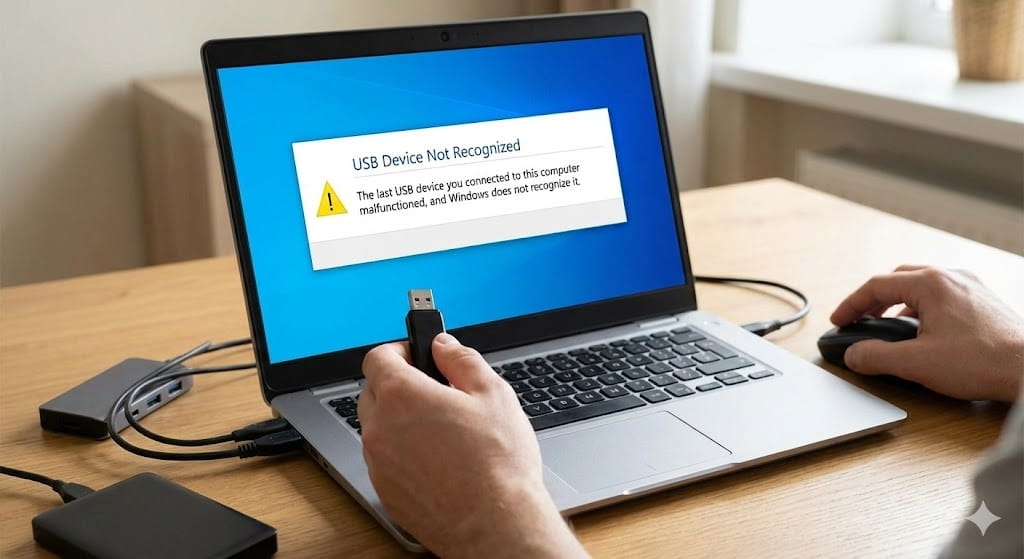
USB device not recognized error, USB not detected Windows, USB device malfunctioned fix, USB port not working solution, unknown USB device error, how to fix USB not recognized Windows 10 and Windows 11, and USB connection problems are among the most common technical issues computer users face. USB devices such as flash drives, external hard drives, keyboards, mice, printers, and smartphones rely heavily on stable USB connections. When a USB device is not recognized, it prevents data transfer, device communication, and normal system functionality.
This error usually occurs due to driver conflicts, power supply problems, damaged USB ports, corrupted system files, or hardware failure. Fortunately, most USB recognition errors can be resolved using simple troubleshooting methods without professional repair. This complete step-by-step guide explains why USB device not recognized errors occur, how to diagnose the problem, and proven solutions to fix USB detection issues permanently.
Understanding USB Device Recognition
USB (Universal Serial Bus) allows computers to connect with external devices through standardized communication protocols. When a USB device is connected, Windows automatically detects the hardware, installs drivers, and establishes communication.
USB Detection Process
- USB device connects to port
- Windows detects new hardware
- Device drivers load automatically
- System assigns device functionality
- Device becomes ready for use
If any step fails, Windows may show the USB device not recognized error.
Common Symptoms of USB Device Not Recognized Error
Recognizing symptoms helps identify whether the issue is software or hardware related.
USB Recognition Problem Signs
- Error message appears after connecting USB
- USB device not showing in File Explorer
- Device connects and disconnects repeatedly
- Unknown USB device notification
- USB device powers on but does not function
- USB device appears in Device Manager with warning sign
Main Causes of USB Device Not Recognized Error
| Cause | Description | Difficulty Level |
|---|---|---|
| Outdated or Corrupted Drivers | USB drivers fail to communicate with device | Easy |
| Power Supply Problems | Insufficient power delivered to USB device | Medium |
| Faulty USB Port | Physical port damage or loose connection | Medium |
| Damaged USB Device | Hardware failure of USB accessory | Hard |
| Windows System Errors | Corrupted system files or registry issues | Medium |
| USB Controller Malfunction | Motherboard USB controller failure | Hard |
Step-by-Step Guide to Fix USB Device Not Recognized Error
Step 1: Restart Your Computer
Restarting is often the simplest and most effective solution.
Why Restarting Helps
- Clears temporary system bugs
- Resets USB controllers
- Refreshes driver communication
- Restarts background processes
Step 2: Try Different USB Port
Sometimes the USB port itself causes the issue.
How to Test USB Ports
- Plug device into another USB port
- Try both front and rear computer ports
- Test USB 2.0 and USB 3.0 ports
If the device works in another port, the original port may be faulty.
Step 3: Test USB Device on Another Computer
This helps determine whether the issue is device-related or system-related.
Results Interpretation
- Works on another computer → Problem is your PC
- Fails on multiple computers → USB device likely damaged
Step 4: Check USB Cable and Physical Damage
Loose or damaged cables often cause recognition failure.
Signs of Physical USB Damage
- Bent connectors
- Loose cable ends
- Burn marks or corrosion
- Device disconnects when cable moves
Step 5: Update USB Device Drivers
Driver issues are the most common cause of USB detection problems.
How to Update USB Drivers
- Open Device Manager
- Expand Universal Serial Bus Controllers
- Right-click USB device
- Select Update Driver
Step 6: Reinstall USB Drivers
Reinstalling drivers resets corrupted configurations.
How to Reinstall USB Drivers
- Open Device Manager
- Right-click problematic USB device
- Select Uninstall Device
- Restart computer
Windows will reinstall drivers automatically.
Step 7: Disable USB Power Saving Settings
Windows may disable USB ports to save power.
How to Disable USB Power Management
- Open Device Manager
- Expand USB Controllers
- Right-click USB Root Hub
- Select Properties
- Go to Power Management tab
- Uncheck “Allow computer to turn off this device”
Step 8: Run Windows Hardware Troubleshooter
Windows provides built-in troubleshooting tools.
How to Run Troubleshooter
- Settings → System → Troubleshoot → Additional Troubleshooters
- Select Hardware and Devices
Step 9: Update Windows Operating System
Windows updates often fix USB compatibility problems.
Benefits of Updating Windows
- Fix driver bugs
- Improve USB compatibility
- Resolve system conflicts
Step 10: Check for Driver Conflicts in Device Manager
Warning symbols indicate driver issues.
Device Manager Warning Symbols
- Yellow triangle → Driver problem
- Unknown device → Missing driver
- Disabled device → Device turned off
Step 11: Change USB Selective Suspend Settings
Selective suspend may disable USB ports incorrectly.
How to Disable USB Selective Suspend
- Open Power Options
- Change Advanced Power Settings
- Expand USB Settings
- Disable Selective Suspend
Step 12: Run System File Checker (SFC)
Corrupted Windows system files affect USB functionality.
How to Run SFC Scan
- Open Command Prompt as Administrator
- Type:
sfc /scannow
- Wait until scanning completes
Step 13: Check Disk Errors for External USB Drives
External drives may contain bad sectors.
How to Check USB Drive Errors
- Open File Explorer
- Right-click USB drive
- Select Properties
- Tools → Check
Step 14: Check BIOS USB Settings
USB ports can be disabled in BIOS.
How to Check BIOS USB Configuration
- Restart computer
- Enter BIOS setup
- Locate USB Configuration
- Ensure USB ports are enabled
Step 15: Perform Windows Reset (Last Resort)
Reset Windows if system corruption prevents USB detection.
USB 2.0 vs USB 3.0 Compatibility Issues
| Feature | USB 2.0 | USB 3.0 |
|---|---|---|
| Speed | Up to 480 Mbps | Up to 5 Gbps |
| Power Output | Lower | Higher |
| Compatibility | Widely compatible | Sometimes driver dependent |
USB Devices That Frequently Cause Recognition Errors
External Storage Devices
- USB flash drives
- External SSD or HDD
- Memory card readers
Peripheral Devices
- Printers
- Gaming controllers
- Webcams
- Keyboards and mice
Advanced USB Troubleshooting Methods
Use Disk Management Tool
Sometimes USB devices are detected but not assigned drive letters.
How to Assign Drive Letter
- Open Disk Management
- Locate USB device
- Assign drive letter manually
Signs of Serious Hardware Failure
Professional repair may be required if:
- Multiple USB ports stop working
- USB devices overheat when connected
- Motherboard damage detected
- Burning smell from USB ports
Estimated USB Hardware Repair Costs
| Repair Type | Estimated Cost |
|---|---|
| USB Port Repair | $40 – $120 |
| Motherboard USB Controller Repair | $150 – $400 |
| External USB Device Replacement | $20 – $200 |
Preventive Tips to Avoid USB Recognition Errors
USB Maintenance Checklist
- Avoid forcefully inserting USB devices
- Use high-quality USB cables
- Safely eject USB drives before removing
- Avoid connecting damaged USB devices
- Keep USB ports clean from dust
How Power Supply Affects USB Functionality
Insufficient system power causes USB devices to disconnect or fail detection.
Power-Related USB Issues
- External hard drives disconnect randomly
- USB devices work only when plugged into powered hubs
- Laptop battery mode reduces USB performance
Impact of Malware on USB Recognition
Malware may block USB device communication or corrupt drivers.
Malware USB Symptoms
- USB drives automatically eject
- Unknown USB devices appear
- Files disappear from USB drives
Always scan USB devices before opening files.
How User Behavior Causes USB Problems
Risky Habits
- Removing USB drives without safe removal
- Using low-quality USB accessories
- Connecting infected storage devices
- Overloading USB hubs
Future Improvements in USB Technology
Modern USB technology continues evolving with:
- USB-C universal connectivity
- Faster USB 4 data speeds
- Improved power delivery systems
- Enhanced device compatibility
Conclusion
The USB device not recognized error is a common but fixable problem that affects external devices and system connectivity. Most USB detection issues occur due to driver problems, power management settings, faulty USB ports, or corrupted system files. By following step-by-step troubleshooting methods such as updating drivers, disabling power saving, checking hardware connections, and running system scans, most USB recognition errors can be resolved quickly.
If USB problems persist after troubleshooting, hardware repair or replacement may be necessary. Regular system updates, proper USB handling, and safe device removal significantly reduce the risk of future USB detection problems.
Frequently Asked Questions (FAQ)
Why does my computer say USB device not recognized?
This error usually occurs due to driver issues, faulty USB ports, or hardware malfunction.
Can a damaged USB cable cause detection problems?
Yes. Damaged or loose cables often prevent USB communication.
How do I fix USB ports not working?
Try updating drivers, disabling power saving settings, and checking BIOS USB configuration.
Does updating Windows fix USB recognition errors?
Yes. Windows updates often resolve compatibility and driver problems.
Can malware affect USB devices?
Yes. Malware may block USB functionality or corrupt storage data.
Should I replace my USB device if it is not recognized?
If the device fails on multiple computers, hardware replacement may be required.