


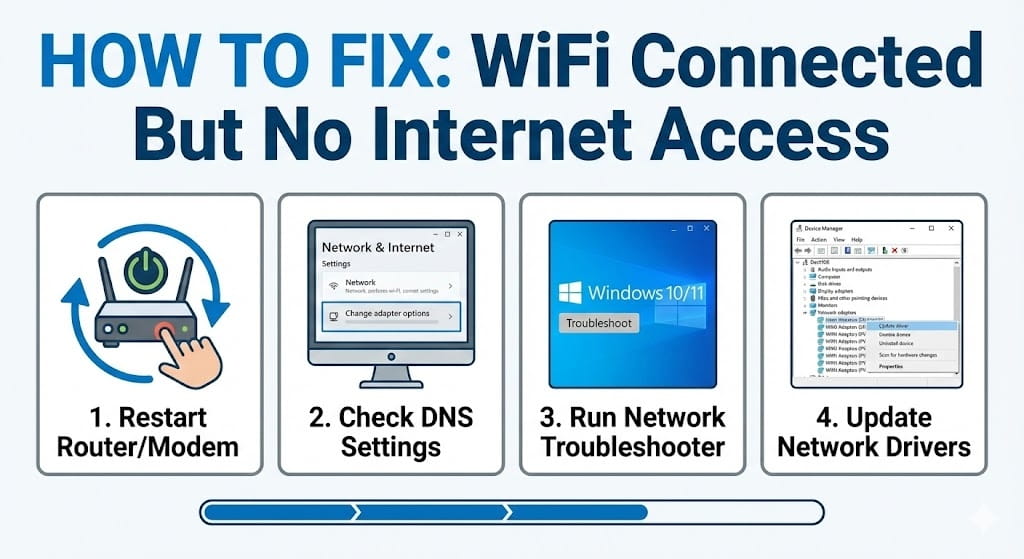
WiFi connected but no internet access, WiFi connected no internet fix, internet not working but WiFi connected, WiFi says connected but no internet, how to fix no internet connection, troubleshooting WiFi internet problems — these are some of the most frustrating and commonly searched network issues worldwide. Seeing your device connected to WiFi but unable to browse websites, stream videos, or use online services can disrupt both work and daily life.
This issue occurs when your device successfully connects to the wireless network but fails to communicate with the internet. The cause may involve router problems, incorrect network settings, ISP outages, device software glitches, or DNS conflicts. Fortunately, most WiFi connection problems can be solved using simple troubleshooting techniques without requiring professional repair.
In this step-by-step guide, you will learn why WiFi shows connected but no internet access, how to identify the exact cause, and proven solutions that work on Windows, Android, iPhone, macOS, and other devices.
Understanding the Problem: WiFi Connected But No Internet
When your device shows WiFi connected status, it means your device has successfully linked to your wireless router. However, internet access requires communication between the router and your internet service provider (ISP). If that connection fails, you may experience internet outages even though WiFi appears active.
Common Symptoms
- WiFi connected but websites do not load
- Internet works on some devices but not others
- Connected network shows “No Internet” message
- Apps fail to connect to servers
- Limited connectivity warning appears
Main Causes of WiFi Connected But No Internet Access
Below is a summary of the most common reasons:
| Cause | Description | Difficulty Level |
|---|---|---|
| Router Malfunction | Router cannot communicate with ISP | Easy |
| ISP Service Outage | Internet provider network down | Easy |
| DNS Configuration Error | Device cannot resolve web addresses | Medium |
| IP Address Conflict | Network assigning duplicate addresses | Medium |
| Device Software Bug | Operating system network glitch | Easy |
| Outdated Network Drivers | Hardware compatibility issue | Medium |
| Firewall or Security Blocking | Network traffic restricted | Medium |
Step-by-Step Guide to Fix WiFi Connected But No Internet Access
Step 1: Restart Your Device
Restarting often fixes temporary software or network glitches.
Why Restart Works
- Clears temporary network cache
- Resets connection protocols
- Refreshes system network settings
- Stops background connectivity conflicts
How to Restart
- Turn off your device completely
- Wait 30 seconds
- Turn it back on
- Reconnect to WiFi network
Step 2: Restart Your Router and Modem
Router issues are one of the most common causes of internet connection failure.
Steps to Restart Router
- Turn off router and modem
- Unplug power cables
- Wait 2-5 minutes
- Plug modem first
- Plug router after modem fully starts
- Reconnect devices
Why Router Restart Helps
Restarting clears network congestion and refreshes ISP connection.
Step 3: Check If Internet Service Provider Is Down
Sometimes the problem is not your device but your ISP.
How to Check ISP Outage
- Test internet on another device
- Use mobile data to check ISP website
- Contact customer support
- Check outage tracking websites
If ISP service is down, you must wait until service is restored.
Step 4: Forget and Reconnect WiFi Network
Saved network settings sometimes become corrupted.
How to Forget WiFi Network
Windows
- Open Settings
- Go to Network & Internet
- Select WiFi
- Manage known networks
- Forget network and reconnect
Android / iPhone
- Open WiFi settings
- Tap connected network
- Select Forget network
- Reconnect using password
Step 5: Run Network Troubleshooter (Windows Users)
Windows includes built-in diagnostic tools.
How to Run Troubleshooter
- Open Settings
- Go to Network & Internet
- Select Advanced Network Settings
- Run Network Troubleshooter
The tool automatically detects and fixes common connection problems.
Step 6: Reset Network Settings
Network reset restores all connection settings to default.
How to Reset Network Settings
Windows
- Go to Advanced Network Settings
- Click Network Reset
Android
- Settings → System → Reset Options → Reset WiFi
iPhone
- Settings → General → Transfer or Reset iPhone → Reset Network Settings
⚠️ This removes saved WiFi passwords.
Step 7: Check IP Address Configuration
Incorrect IP settings prevent internet communication.
How to Renew IP Address (Windows)
- Open Command Prompt
- Type:
ipconfig /release
ipconfig /renew
Why This Works
Renewing IP address helps resolve address conflicts and refresh network routing.
Step 8: Flush DNS Cache
DNS cache stores website address data. Corruption can block internet access.
How to Flush DNS (Windows)
Open Command Prompt and type:
ipconfig /flushdns
How to Flush DNS (Mac)
Use Terminal command:
sudo dscacheutil -flushcache
Step 9: Change DNS Server
Using public DNS servers often fixes connectivity problems.
Recommended DNS Servers
| Provider | Primary DNS | Secondary DNS |
|---|---|---|
| Google DNS | 8.8.8.8 | 8.8.4.4 |
| Cloudflare | 1.1.1.1 | 1.0.0.1 |
| OpenDNS | 208.67.222.222 | 208.67.220.220 |
Step 10: Disable VPN or Proxy Connections
VPN services sometimes block internet access.
How VPN Causes Problems
- Incorrect server routing
- DNS conflicts
- Authentication failure
Disable VPN temporarily and test connection.
Step 11: Update Network Drivers
Outdated drivers cause connectivity issues.
How to Update Drivers (Windows)
- Open Device Manager
- Expand Network Adapters
- Update WiFi driver
Step 12: Check Firewall or Antivirus Restrictions
Security software may block internet access.
Troubleshooting Steps
- Temporarily disable firewall
- Disable antivirus protection briefly
- Test connection again
⚠️ Always re-enable security software after testing.
Step 13: Check Router Settings
Router misconfiguration may block internet.
Router Settings to Check
- DHCP enabled
- Correct WAN settings
- Firmware updated
- MAC filtering disabled (if unnecessary)
Step 14: Update Router Firmware
Firmware updates improve network stability and fix bugs.
How to Update Router Firmware
- Login to router admin panel
- Check firmware update section
- Install latest update
Step 15: Reset Router to Factory Settings
If nothing works, resetting router may fix deep configuration errors.
How to Reset Router
- Press reset button for 10-15 seconds
- Reconfigure WiFi network settings
Device-Specific Troubleshooting Differences
| Device Type | Common Cause |
|---|---|
| Windows PC | Driver or DNS issues |
| Android Phones | App or network cache problems |
| iPhone | Network configuration conflict |
| Smart TVs | Router compatibility issue |
| Gaming Consoles | NAT or router port restrictions |
Advanced Troubleshooting for Experienced Users
Check Network Gateway
Verify router gateway IP using command:
ipconfig
Test Internet Using Ping Command
ping google.com
If ping fails, connection problem exists.
Common User Mistakes That Cause WiFi No Internet Problem
Avoid these errors:
- Changing router settings without knowledge
- Using outdated firmware
- Installing suspicious VPN apps
- Ignoring network driver updates
- Using multiple routers incorrectly
Preventive Maintenance Tips
Monthly Network Maintenance Checklist
- Restart router regularly
- Update router firmware
- Clear DNS cache
- Update device software
- Check ISP service status
When Should You Contact ISP or Technician?
You should seek professional help if:
- Router restart does not fix issue
- Multiple devices show no internet
- ISP service remains unstable
- Router hardware is damaged
- Internet disconnects frequently
Estimated Cost of Fixing WiFi Internet Issues
| Problem | Estimated Cost |
|---|---|
| Router Replacement | $50 – $200 |
| Technician Visit | $70 – $150 |
| Network Adapter Replacement | $30 – $100 |
| ISP Service Repair | Varies |
Future WiFi Technologies Improving Connectivity
Upcoming wireless technologies aim to reduce connection failures.
Future Improvements
- WiFi 7 ultra-speed connectivity
- AI-powered network optimization
- Smart bandwidth management
- Automatic interference detection
How User Behavior Affects WiFi Stability
Activities That Increase Network Load
- Multiple streaming devices
- Online gaming
- Large file downloads
- Cloud backup syncing
- Video conferencing
Conclusion
Experiencing WiFi connected but no internet access can be frustrating, but most connection problems occur due to router errors, ISP outages, incorrect DNS settings, or software conflicts. By following structured troubleshooting steps such as restarting router, resetting network settings, updating drivers, and adjusting DNS configuration, you can resolve most WiFi connectivity issues quickly.
Regular network maintenance, firmware updates, and proper router placement significantly improve long-term internet reliability. However, if troubleshooting does not solve the problem, contacting your ISP or replacing faulty hardware may be necessary.
Frequently Asked Questions (FAQ)
Why does my WiFi say connected but no internet?
This usually occurs when your device connects to the router but the router cannot connect to the internet.
Can DNS settings cause no internet access?
Yes. Incorrect DNS configuration prevents websites from loading even if network connection exists.
Does restarting router fix internet problems?
Yes. Restarting router often resolves network congestion and ISP communication errors.
Why does internet work on some devices but not others?
Device-specific network settings, software bugs, or driver issues often cause this problem.
Should I reset network settings to fix WiFi problems?
Yes. Network reset removes corrupted configurations and often restores connectivity.
Can outdated drivers cause internet connection failure?
Yes. Outdated network drivers can prevent proper communication between device and router.